


Lead magnets are one of the most effective tools for building an email list. Offering a free resource in exchange for an email can lift signup rates by around 50%.1
And yet, Substack never supported them natively.
That finally changed. With a new feature called audience-specific content, you can now build a lead magnet inside a single Substack post. Non-subscribers see a pitch for your freebie, and the moment they subscribe, the lead magnet takes its place.
What Is a Lead Magnet?
A lead magnet is a free resource you provide in exchange for an email address. It could be a template, a checklist, a swipe file, or even a short guide that solves one specific problem. And since most lead magnets are digital products, once you’ve created one, there’s usually no added cost to give a copy to each new subscriber.
If you’ve ever subscribed to a list just to get the free resource it offered, you’ve experienced firsthand how effective lead magnets can be.
A good lead magnet gives readers who were about to keep scrolling a reason to stop and subscribe. The best ones are tightly aligned with what you write about, so they attract the same people who’d want your newsletter anyway, and those readers tend to stick around after they get their free download.
Why Lead Magnets Used to Be Hard on Substack
Despite how effective lead magnets are for list building, Substack never really supported them, so publishers used workarounds instead.
Welcome emails: Every time someone subscribes to your publication, they receive a welcome email. Some publishers offer lead magnets and deliver them by including a link in their welcome email. The problem is that the same welcome email is sent to every new subscriber. This means that if you used multiple lead magnets, you would need to include all of them in the same email. This quickly gets out of hand, and current subscribers have no way to access new lead magnets.
Third-party tools: The other route is a third-party tool like Kit or Gumroad. You add a custom button to your Substack post that links to a landing page where readers can enter their email to get the freebie. It works, but it pushes readers off Substack onto a separate form and a separate list, so you are managing two databases and paying for a second tool to do something you should be able to do inside your publication. The emails you collect also reside on the third-party list, not on your Substack, so you have to export and import them manually for those readers to become Substack subscribers. Since the lists are not connected, anyone who unsubscribes on Kit stays subscribed on Substack, with no way to automatically remove them, so they keep receiving your emails even after they've opted out.
Let’s look at how Substack’s new audience-specific content feature solves this!
How Substack’s Lead Magnet Feature Works
Audience-specific content is a single block you add to a post, and it shows different content depending on who’s reading. For a lead magnet, you give it two states.
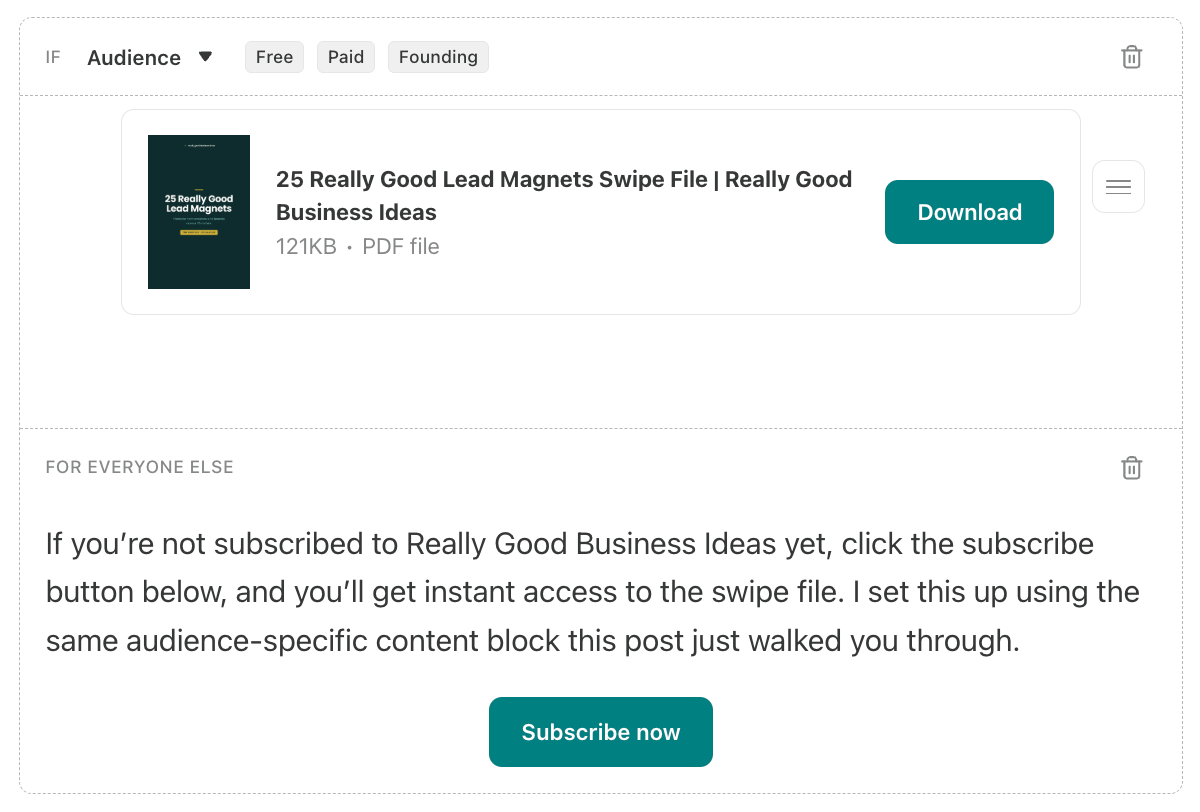
The IF Audience version, with Free, Paid, and Founding selected, shows your subscribers the resource: a download button, a link, or the file embedded right there.
The For everyone else version shows every non-subscriber the pitch: what the resource is, and a button to subscribe for free.
From the reader’s side, it happens in one motion. Someone lands on your post and sees the offer and a subscribe button. They subscribe, the page updates, and the block that showed a pitch a second ago now shows the download. The subscription is the opt-in. The whole thing happens on your post, with no redirect to another site, and no third-party tool or secondary list to manage.
How to Set Up Your First Lead Magnet on Substack
Adding a lead magnet to one of your Substack posts takes only a few minutes. Here's the full process, step by step.
Make the resource and decide where to host it. It can be a file you upload directly to your post, or a link to somewhere else, like a Google Doc or a Notion page.
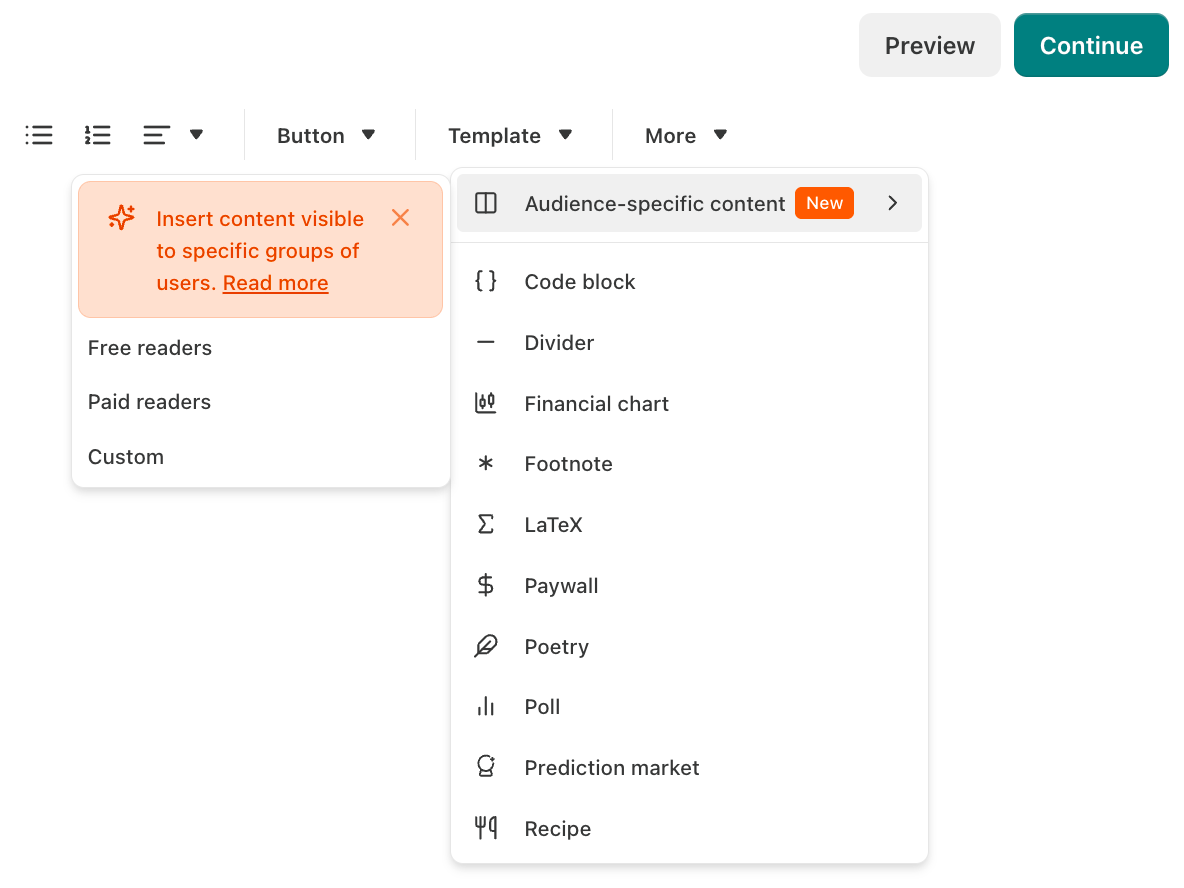
Open your post and place your cursor where the lead magnet should go. In the editor toolbar, select More, then Audience-specific content.
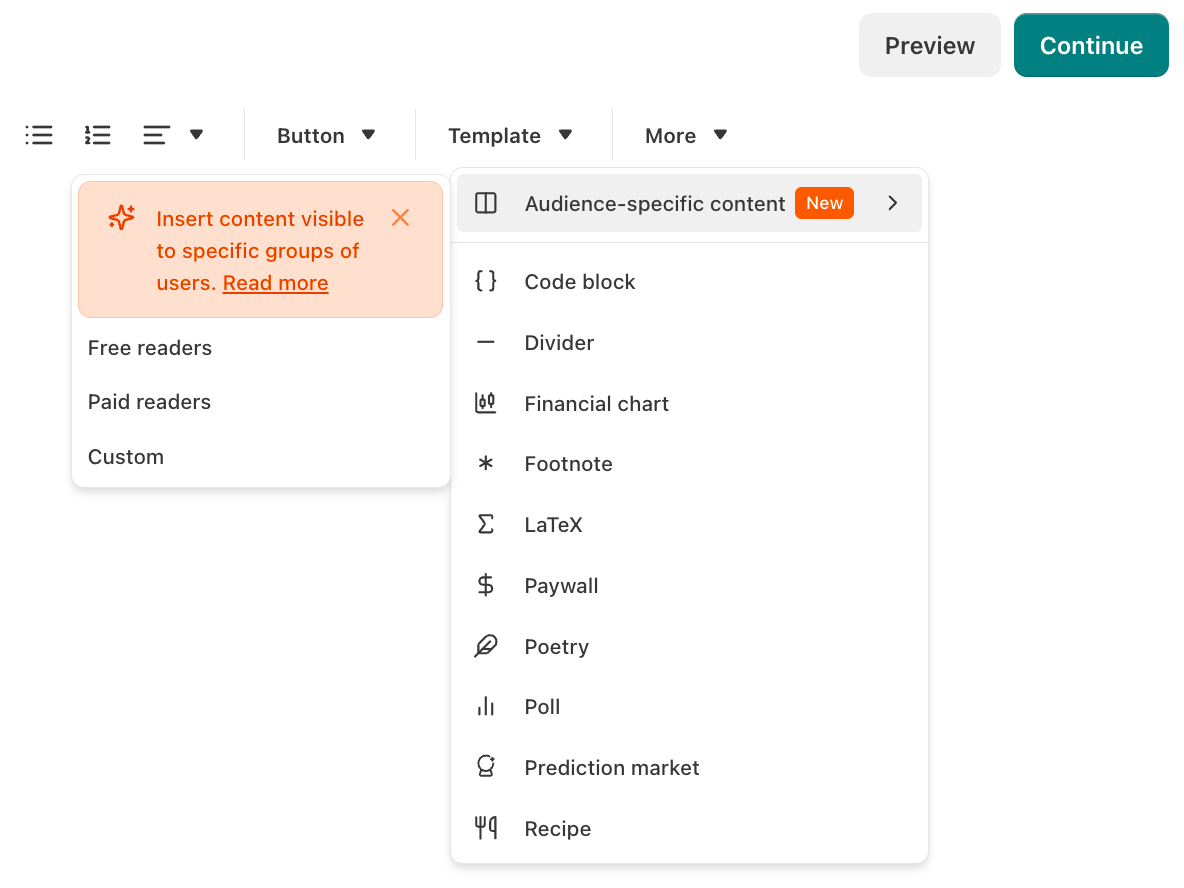
Choose a template, or pick Custom. Set the first block's audience to Free, Paid, and Founding.
Drag your file into the block. A download button will load and you can click Edit from the hamburger menu right side of the file to add a thumbnail. If your lead magnet is a URL, you can add your URL to the block instead.
Write your pitch in the For everyone else block. Share what readers will get when they subscribe and add a subscribe button. This is what logged-out visitors and non-subscribers will see.
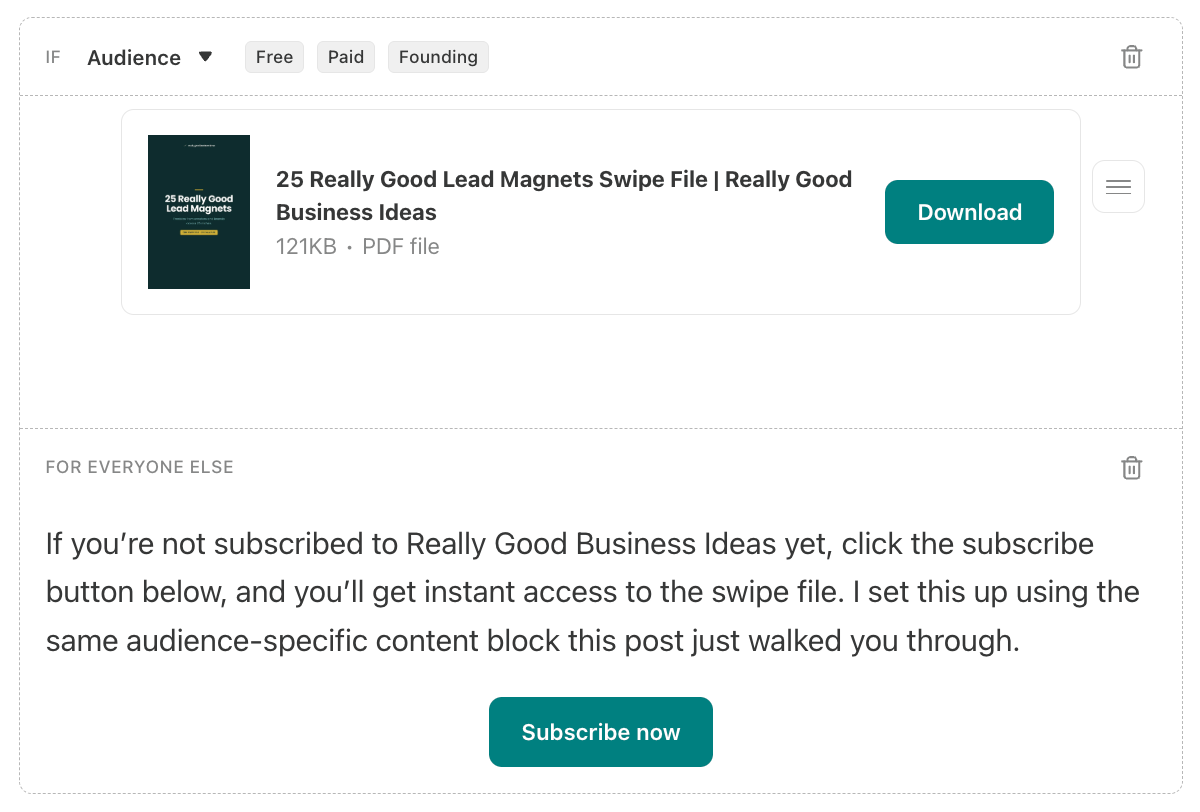
Here’s a s screenshot of how I set up my lead magnet below. Hit Preview and check both views. Non-subscribers and logged-out visitors will see your offer, while subscriber will see the free download. Once a non-subscriber clicks the subscribe button, the lead magnet will take its place.
If you plan to reuse the same lead magnet in the future, save the setup as a template so you can add it to future posts in two clicks.
What Makes a Lead Magnet Worth Subscribing For?
For most people, creating a lead magnet is the easy part. Identifying a lead magnet that people actually want is harder. The best lead magnets are focused on a specific problem and immediately valuable to your audience. For example, a home-cooking newsletter might offer a week of quick, healthy dinners with simple recipes and a prepared grocery list for busy readers who are trying to eat out less.
Since the lead magnet can live inside a normal post, it will also have a URL you can share in Substack Notes, your welcome emails, or anywhere else you want to promote it. No need to maintain a separate landing page outside your publication!
The best lead magnets are built to get them into as many hands as possible and help you grow your list. Having a one-click subscribe button that automates delivery can help them reach even more people, so higher-value offers that have a cost associated with them, should be added to your paid tier as perks instead.
25 Lead Magnet Examples for Inspiration
Here’s where I share my lead magnet so you can see how the feature works firsthand :)
I put together a swipe file of 25 lead magnets you can explore for inspiration. These examples come from creators and brands across a range of niches, each with a short note on why it works. It’s free and it’s one click away.
If you’re not subscribed to Really Good Business Ideas yet, click the subscribe button below, and you’ll get instant access to the swipe file. I set this up using the same audience-specific content block this post just walked you through.
Build Your First Lead Magnet This Week
Building your first lead magnet doesn't require a redesign or a new tool. Pick one resource you can make this week. Remember it doesn’t need to be fancy as long as it solves a specific problem for the readers you want to reach. Once you have a lead magnet ready, build your blocks in your next post, preview both subscriber and non-subscriber views to make sure everything is working properly, and hit publish. You'll have a lead magnet running automatically inside your publication, turning readers into subscribers while you write the next post.
To endless possibilities,
Casandra
Need More Help?
Really Good Business Ideas Premium: A membership designed to make starting and growing a profitable business easier. Full archive access, DM support, and a library of tools and resources.
Substack Creator OS: A complete operating system for planning, writing, growing, and monetizing your newsletter, all in one connected Notion workspace. (Right now, it’s free for Premium subscribers).
Work With Me Directly: Book a 1-on-1 consultation or coaching call to get personalized help when you need it. Think of it as a focused working session to get unstuck, gain clarity, or move something forward.
Build Your Brand on Substack: Whether you’re still deciding or ready to build, I’ll meet you where you are. I offer executive briefings and hands-on strategy sessions for marketing teams that want to win on Substack.

I set up my first lead magnet! This post was super helpful! I couldn't have done it without its help! Thank you, Casandra Campbell!
No way! I never knew. Thank you for sharing this!