

How to Create Post Templates on Substack
An easy way to save time and keep your content consistent.

If you’ve ever used an email platform like Kit or a publishing tool like WordPress, you’ve probably come across content template features that let you save pre-structured or formatted posts. These are so helpful for content where the structure is consistent, but the content changes every time, like a weekly roundup, an interview series, a recurring Q&A, or a product review.
Unfortunately, Substack doesn’t have a template feature. But after manually reformatting the same post structure over and over, I went looking for a workaround and found one that actually works.
Today, I’ll walk you through how to create post templates on Substack and why they’re worth setting up.
Why I Love Post Templates
Consistency is effortless. When you publish a recurring series, a template means every issue has the same structure, the same sections in the same order, and the same formatting. Readers know what to expect, and you’re not making layout decisions from scratch every time.
Publish faster. Less time on setup means more time on the actual content, which matters when you’re on a schedule.
Your best copy is right where you need it. CTAs, disclaimers, sponsor messaging, sign-off lines. Anything you’d otherwise have to hunt through old posts to find and copy over is already there.
Fewer things fall through the cracks. If your weekly post always needs a CTA, a section intro, and a disclosure, and all three are already in the template, you’re less likely to ship without one of them.
Collaboration is easier. If you work with a guest contributor or collaborator, a template gives them a clear structure to follow without you having to explain your format every time.
How to Use Post Templates in Substack (Easy Workaround)
Substack doesn’t have a native templates feature, but with a simple drafts workaround, you can get the same result in just a few steps!
Create a new draft post. Add all the recurring elements you want in your template: header image or other visuals, section headings, rich content features, recurring copy, calls to action, subscribe buttons, dividers, whatever belongs in every post of that type. Build it out as if it were a real post, ready to publish.
Name it clearly. Give it a name that makes it easy to find and impossible to accidentally publish, like "[TEMPLATE] Weekly Roundup" or "[TEMPLATE] Free Post."
Save it and leave it. Don’t publish it, just let it live in your post drafts.
When you’re ready to write a new post, find your template draft and click the three dots next to the title. Select “Duplicate” from the drop-down menu.
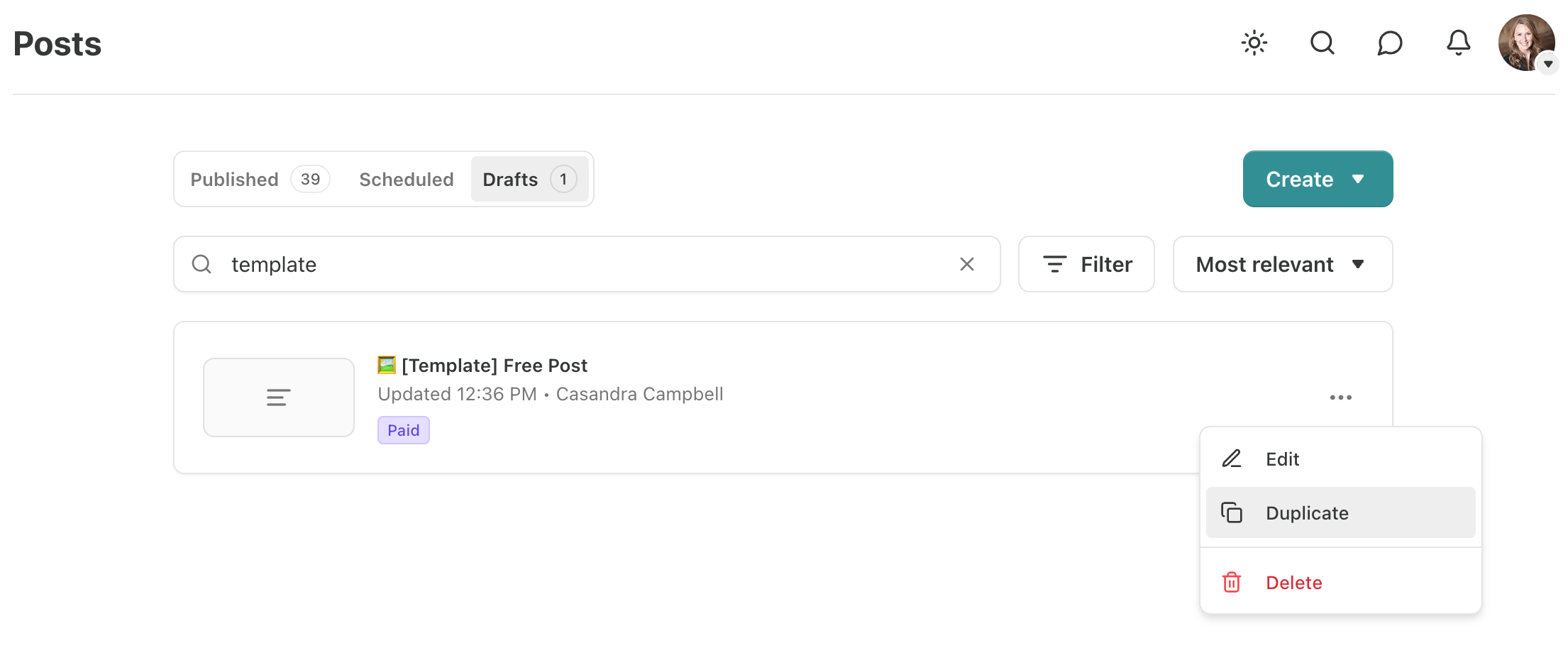
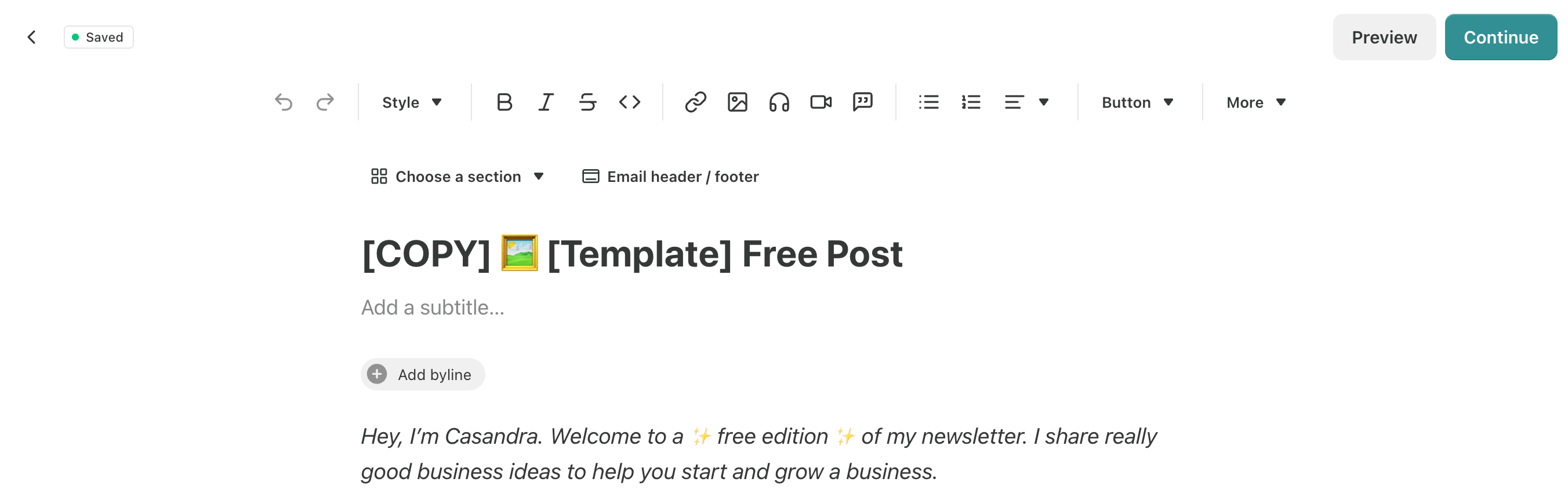
Write your post in the duplicate copy. All your recurring elements are already there. Update the title, swap in the new content, and publish when you're ready. Your original template stays untouched in your drafts, ready to duplicate again next time.
Real Examples of When to Use Post Templates
Post templates are useful any time you publish something that follows a predictable structure. That covers more ground than most people expect. Here are some examples to help you see where they might fit in your own newsletter.
Daily and Weekly Formats
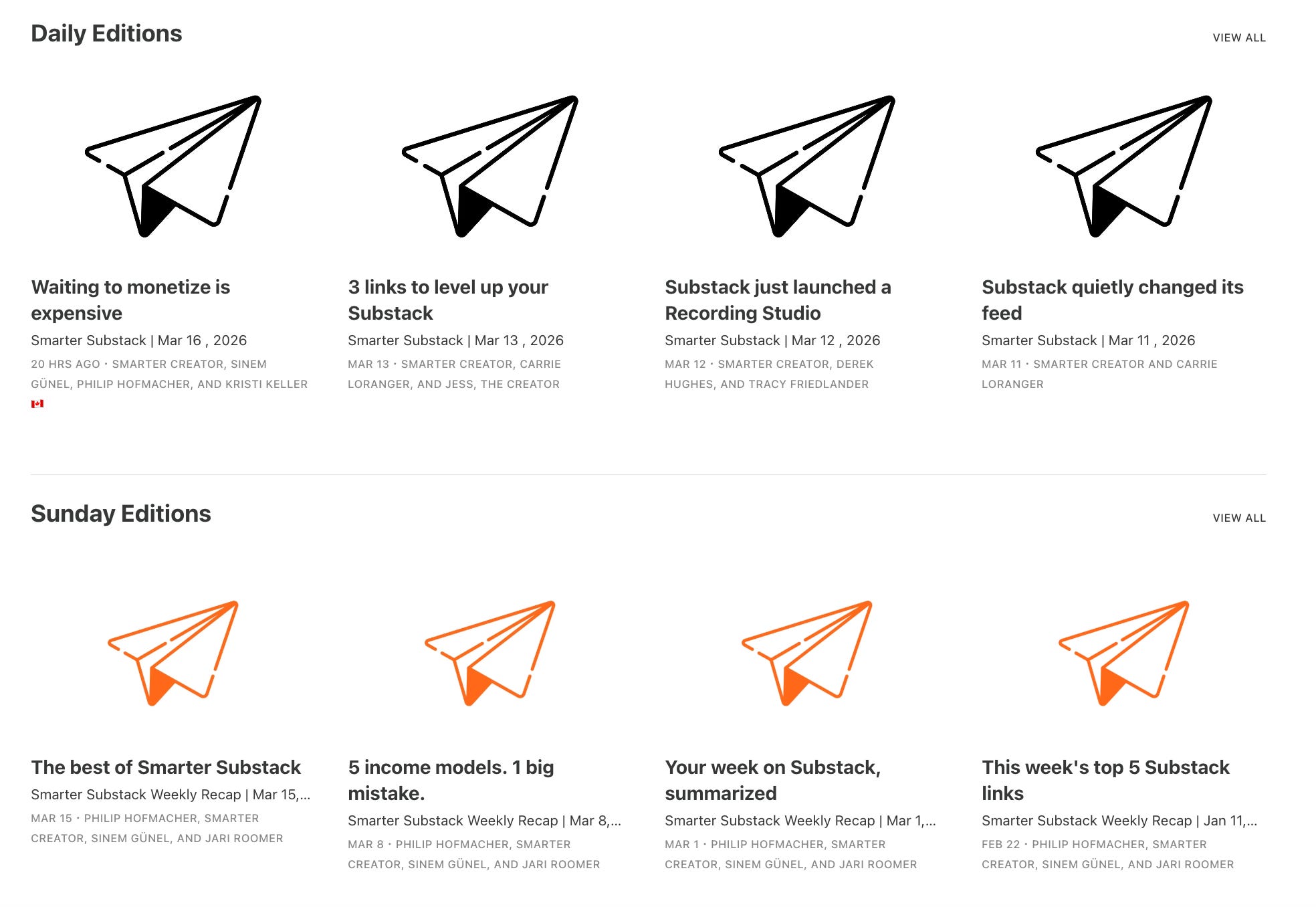
Smarter Substack is a daily curation newsletter that delivers three Substack growth resources to subscribers every weekday, plus a weekly Sunday recap. Each format has its own distinct look. The daily posts use a black and white paper plane header; the Sunday edition uses an orange one. Both formats include consistent section headers, emojis, dividers, subscribe buttons, recurring copy, and a sign-off. A template for each means not having to set up from scratch every time. Simply open the template, update the content, and publish.
Consistent Intro Sections
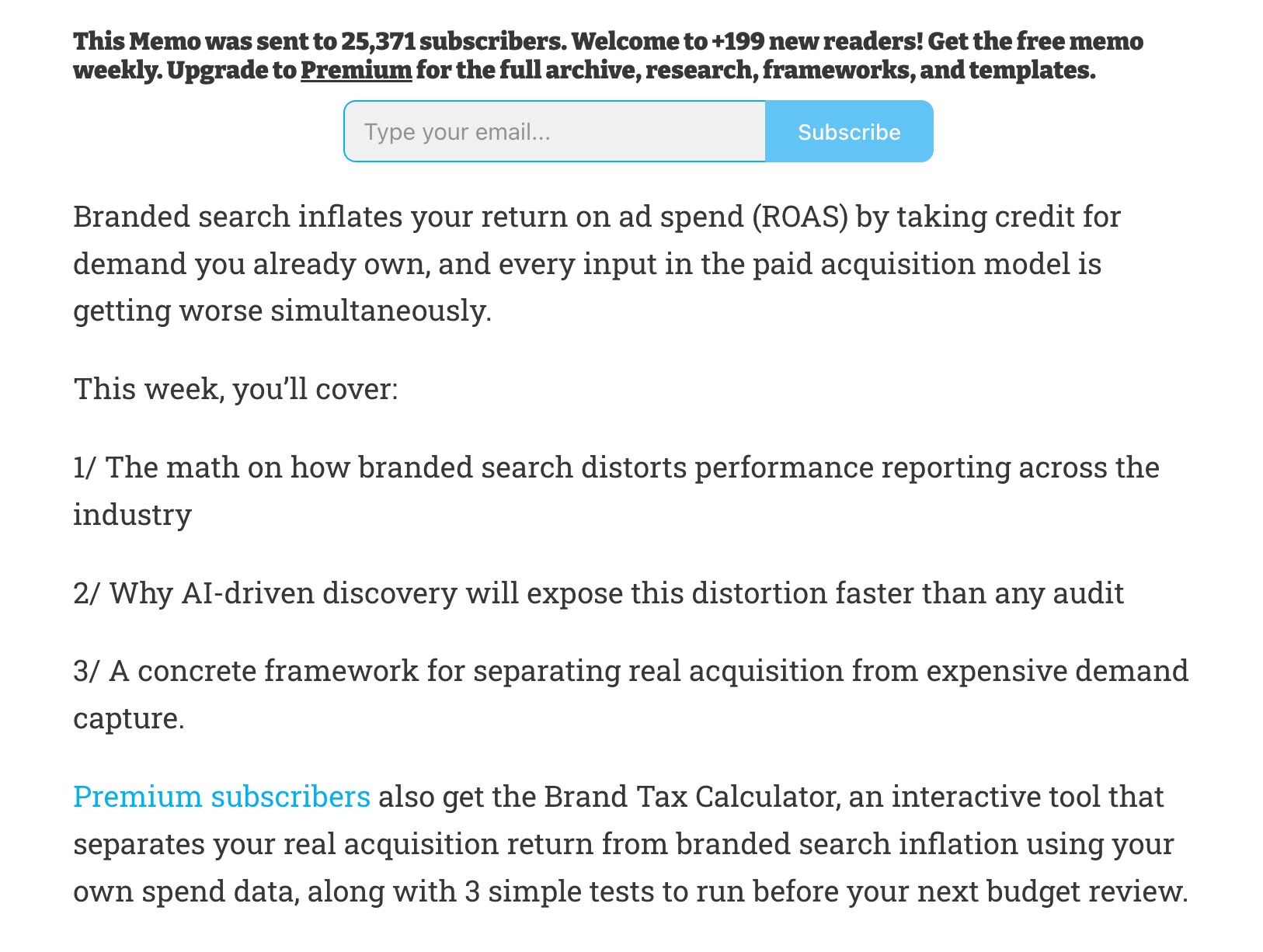
Growth Memo is a weekly, advanced growth newsletter focused on primary research and timely insights. Each issue typically follows the same intro structure: a themed header image, a one-line caption that restates the thesis, a short summary paragraph, a numbered preview of the issue's contents, a premium upsell line for paid subscribers, and a sponsored ad section before the main content begins. With that many moving parts, a template makes it much easier to keep everything straight and make sure nothing gets missed.
Guest Series
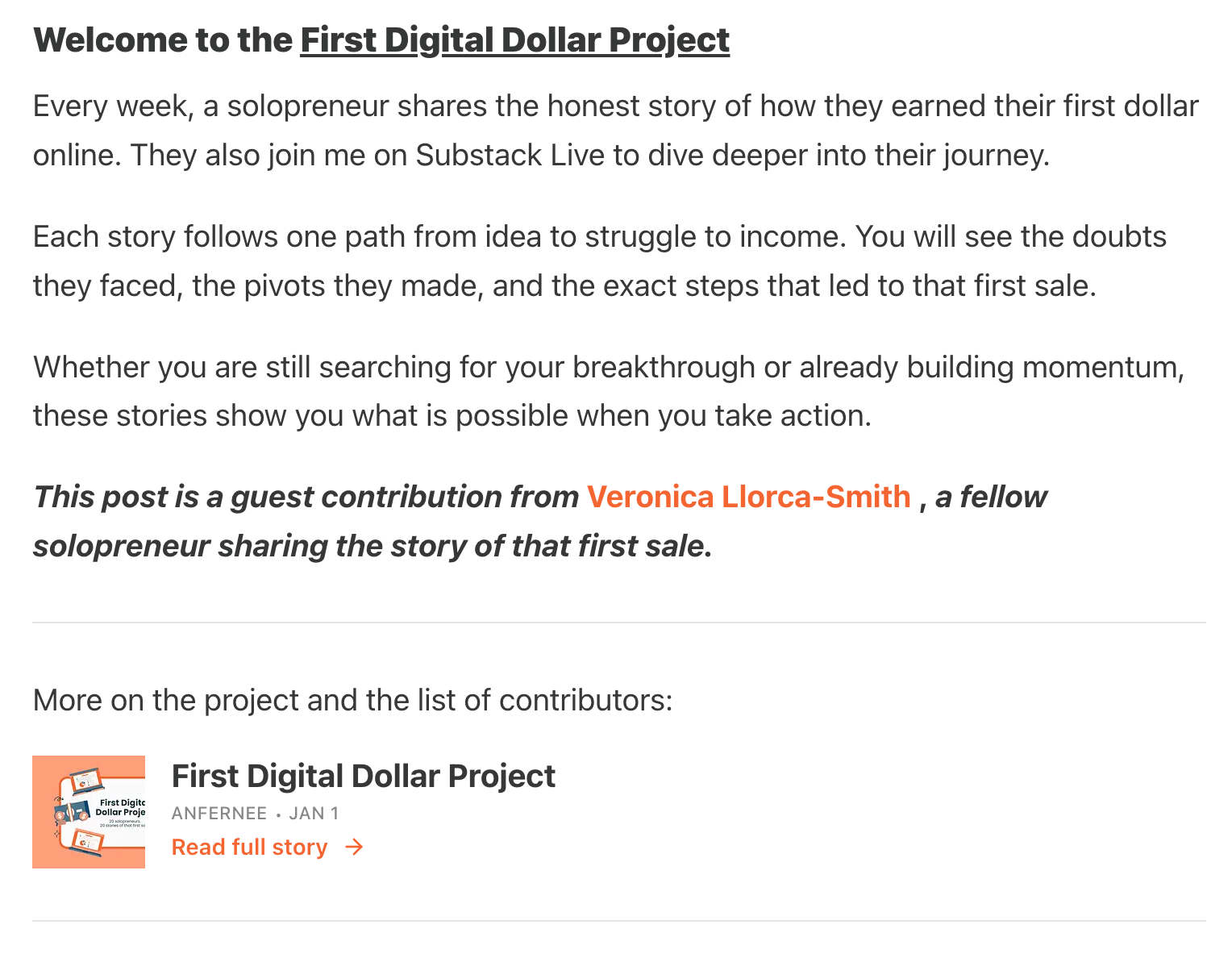
Solopreneur Code is a weekly newsletter that helps solopreneurs work smarter and earn more using AI. The publication runs a guest series in which guests share the story of how they earned their first dollar online. Every post follows the same structure: three paragraphs of boilerplate copy introducing the series, a bold italic attribution line crediting the guest, an embedded link card pointing back to the project intro, a featured image card with the guest's name and photo, the guest's story, their sign-off, another link card, and a subscribe section. That's a lot of repeated scaffolding to rebuild from scratch each time. A template can handle all of it, so the only thing that actually changes post to post is the guest's story itself.
Refined Pitches and Calls to Action
Strategy in Praxis is a biweekly newsletter on strategy and uncertainty. Every issue opens with the same salutation, the same one-line greeting, and then a full services section pitching keynote decks and consulting offerings before the main content begins. The keynote titles, domain list, format list, and contact line are all identical from issue to issue. That section is essentially a standing ad for an active speaking-and-advisory business. A template lets you dial in your pitch once and easily reuse it again and again.

5 Tips to Use Templates More Effectively
Label your template drafts clearly. Something like “[TEMPLATE] Weekly Roundup” is enough. You don’t want to accidentally publish a blank template, and you definitely don’t want to spend five minutes hunting for it every time you need it.
Check your paywall placement before publishing. When you duplicate a draft, any paywalls in the original carry over. That’s useful if you want them there, but worth double-checking so you’re not accidentally locking content that should be free, or leaving paid content open.
Keep your templates updated. If you change your CTA, update your sign-off, or add a new recurring section, go back and update the template too. A template that’s out of date defeats the purpose.
You don’t need a template for every post type. Just the ones you publish more than once. One-off posts don’t need a template, but if you’re publishing the same format every week, having one ready saves real time.
You can have as many as you need. One for free posts, one for paid posts, one for each Section, etc. There’s no limit!
Post templates are one of those small publishing habits that don’t feel like a big deal until you have them. Once you do, you’ll wonder why you wasted so much time copying and pasting each time you published.
If you publish any kind of recurring content on Substack, it’s worth setting up at least one template. Start with whatever format you publish most often and go from there.
To endless possibilities,
Casandra

Wonderful workaround!