


There’s a single setting in your Substack dashboard that upgrades the look of your publication across every page.
That setting is your wordmark upload. A wordmark is a stylized image version of your publication name that replaces the default text in your navigation bar. Without it, Substack displays your publication name in its default web font, and you miss an opportunity to personalize your publication and build a strong, easily recognizable visual brand.
What is a Wordmark?
A wordmark is a text-based logo that uses a stylized version of a name or word as the brand's primary visual identifier. Unlike an icon or symbol logo, a wordmark is typography-driven. Think of how Google, Coca-Cola, or FedEx use their names as logos.



Where Your Wordmark Appears on Substack
On Substack, your publication wordmark is a horizontal image of your publication name that appears in the navigation bar at the top of every page, replacing the plain-text title Substack displays by default.

It appears on:
Your publication homepage (the page readers see when they visit your Substack URL directly).
Individual post pages.
Any other pages within your publication (About, Archive, and so on).
At the top of your Substack profile page.

It does not appear in your emails. The header image in your emails is a separate asset called an email banner, which has different dimensions and gets uploaded from a different part of your settings. If you want a branded header in your newsletters too, you’ll need to create that separately. (My guide to Substack visuals covers all of it.)

What Are Substack’s Wordmark Specs?
Getting the dimensions right before you start designing saves a lot of frustration later.
Minimum size: 1344 × 256 pixels
Aspect ratio: 21:4
Accepted file types: PNG or JPEG
I recommend using a PNG with a transparent background. If you upload a wordmark with a white background and a reader views your publication in dark mode, the white box will sit visibly on top of the dark background. A transparent PNG adapts to both light and dark mode automatically.
One thing a lot of people gets wrong is leaving blank space around the edges of the canvas. Your wordmark file might be the correct 1344 × 256 px, but if your text only fills the middle third of the canvas, Substack shrinks the whole image down proportionally and your publication name ends up looking tiny on the page. Fill the canvas edge-to-edge. The header section on your publication site provides its own padding, so you don’t need to leave buffer space inside the file.

How to Create Your Substack Wordmark in Canva
Canva is the most straightforward free option for creating a wordmark. There’s no built-in Substack wordmark template in Canva, so you’ll need to set the dimensions manually.
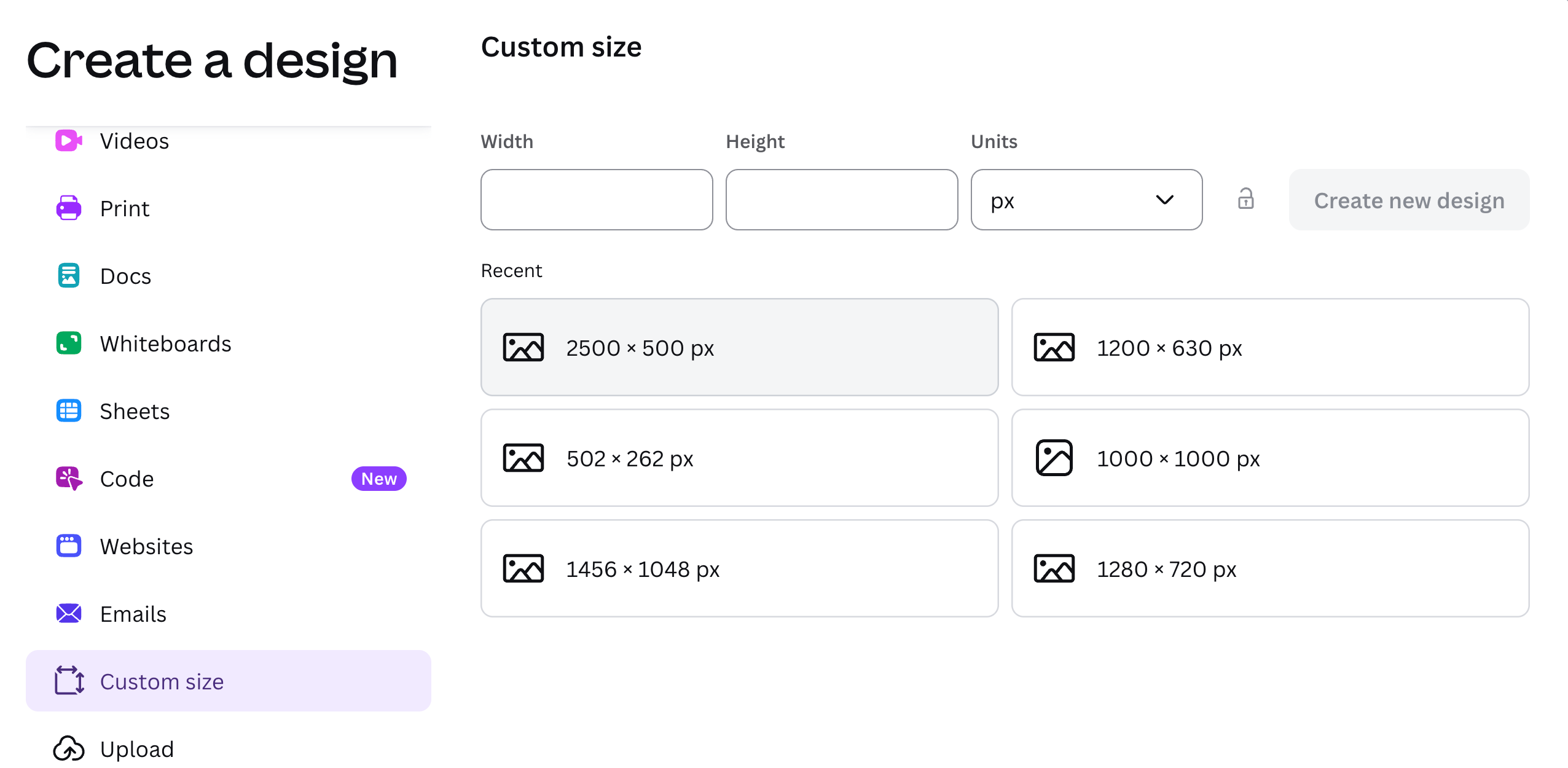
Step 1: Open Canva and click Create. Select Custom size, enter 1344 px wide and 256 px tall, and click Create new design. (Premium subscribers can skip this step and open the template at the bottom of this post.)
Step 2: Add a text box with your publication name. If you already have a logo, use the same font. If you don’t have a logo yet, choose a font that fits your brand's personality. For example, publications that read more like a journal might choose a cursive font, while more technical publications might prefer a mono font.


Step 3: Scale the text until it stretches to the edges of the canvas. This is important to ensure your wordmark doesn’t appear too small in your publication.
Step 4: To export your workmark, click Share and scroll down to and click Download.
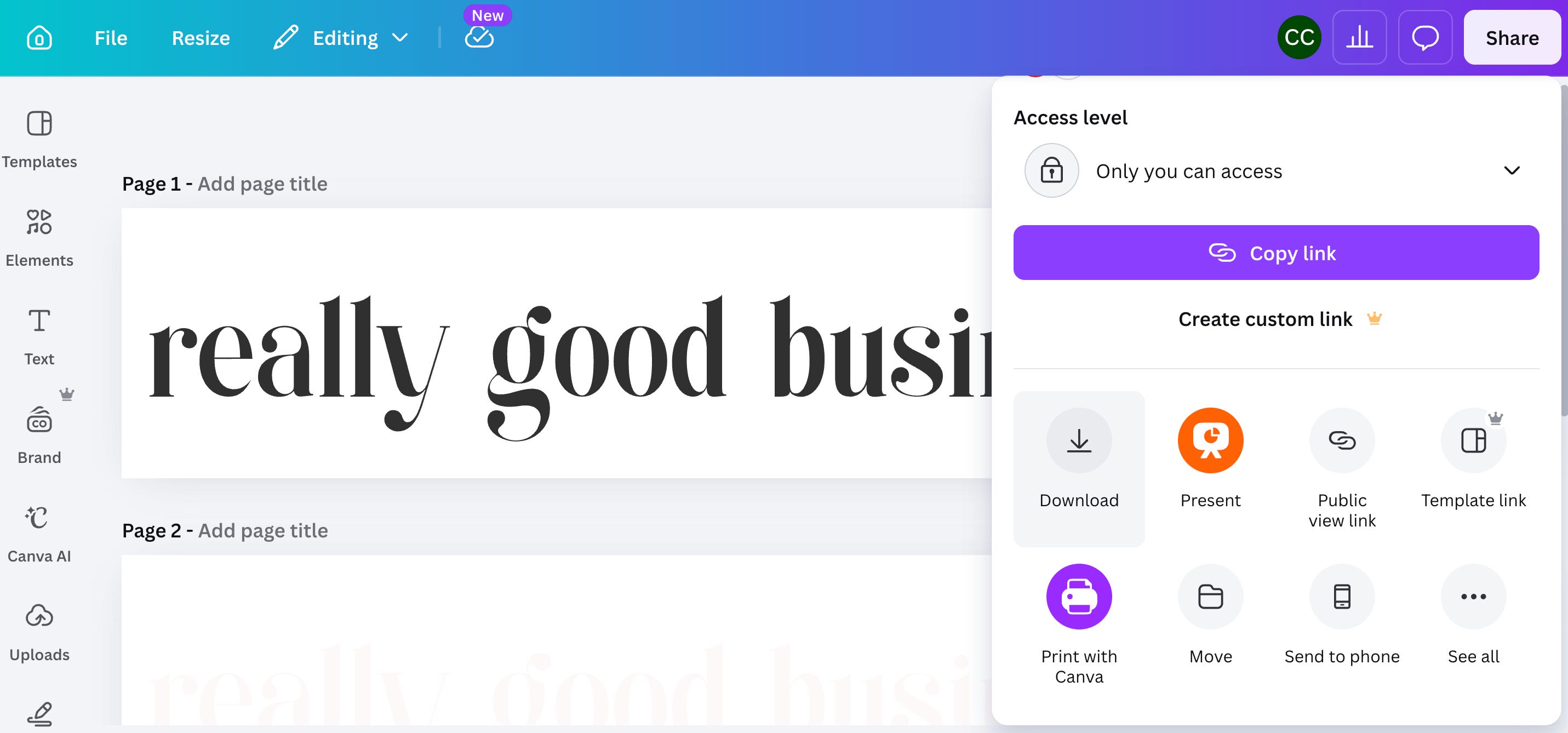
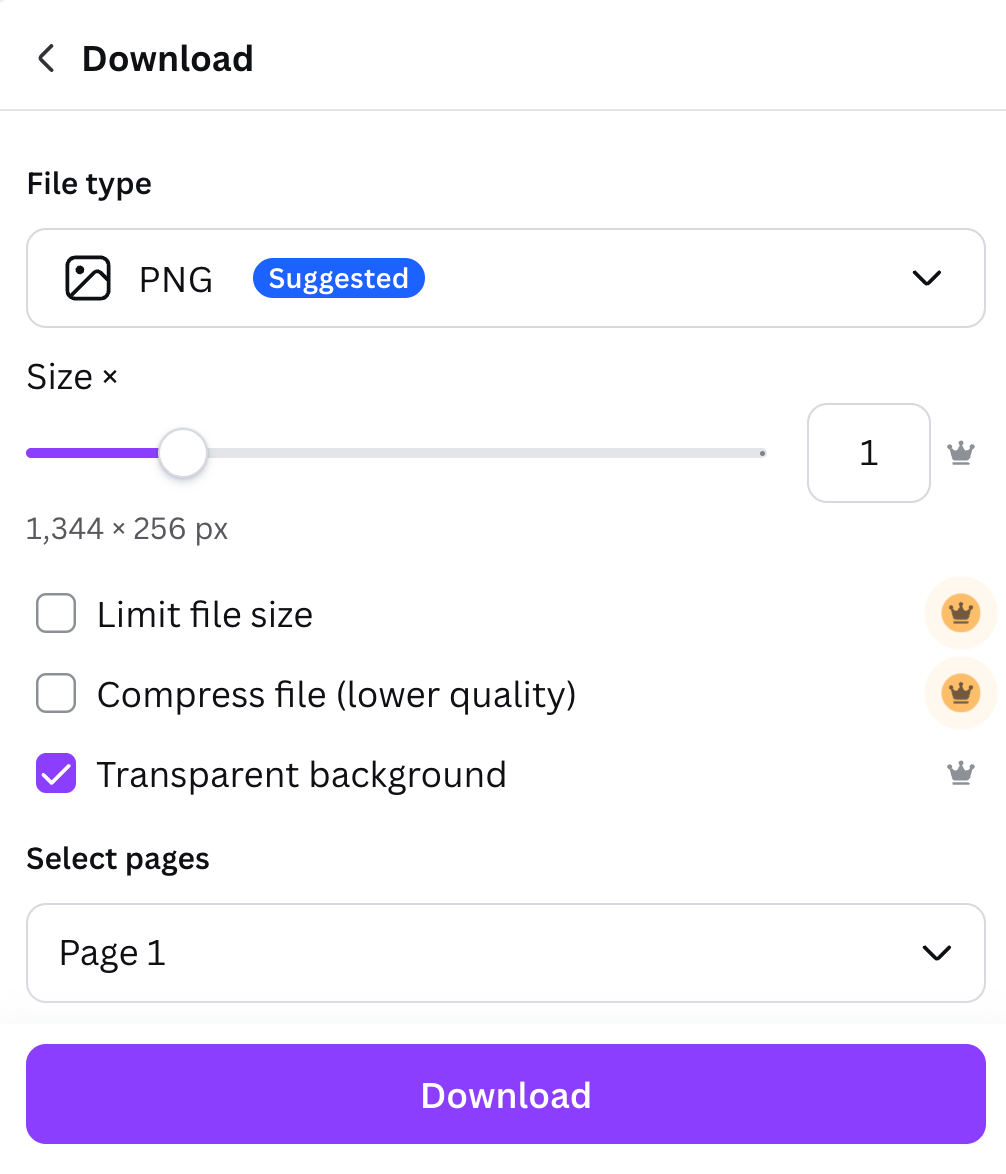
Export your wordmark as a PNG. To get a transparent background (which you want), you have two options.
Canva Pro lets you export with a transparent background directly.
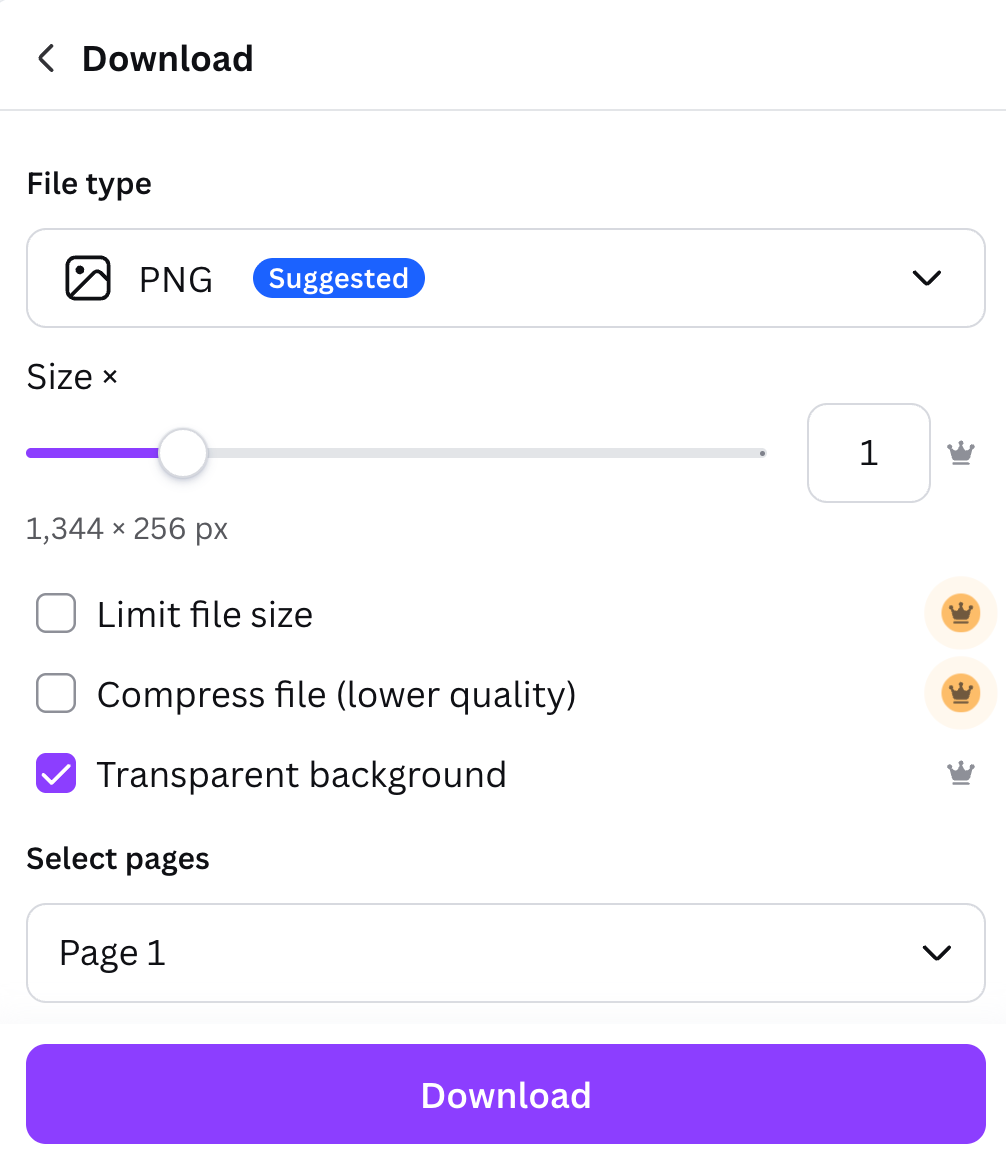
If you’re on the free plan, export as PNG normally, then use a free tool like remove.bg to remove the background.
Step 5: Upload your wordmark to Substack (see the next section for instructions), then check how it looks against your publication’s background. If anything looks off, adjust and re-upload. It takes less than a minute once you have the file ready.
Step 6 (Bonus): Upload your wordmark to your brand vault. I use a brand vault to keep all my brand’s visual assets in one easy-to-access place. I even include multiple versions of my wordmark, like a black version for light backgrounds and a white version for dark backgrounds.

How to Upload Your Wordmark to Substack
1. Go to your Substack publication’s dashboard.
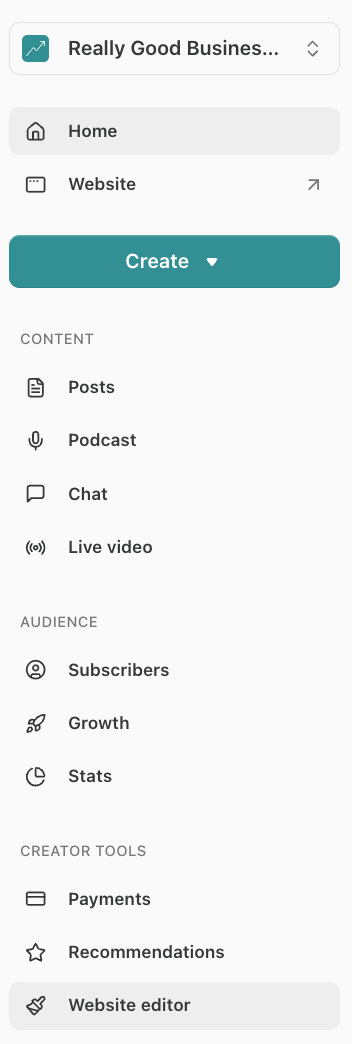
2. Click Website Editor in the left sidebar.
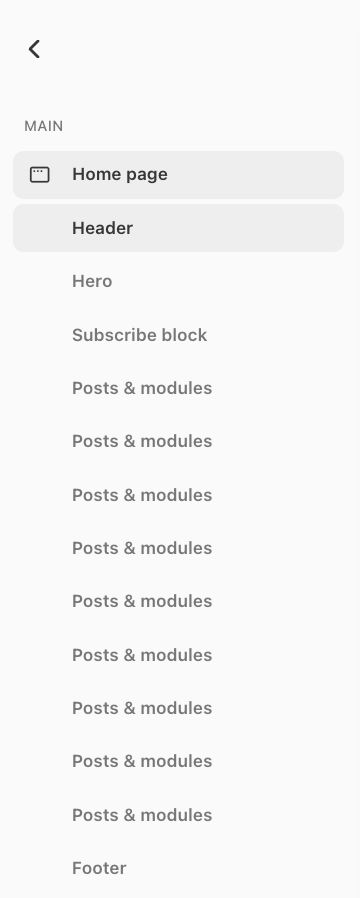
3. Select Header from the menu on the left.
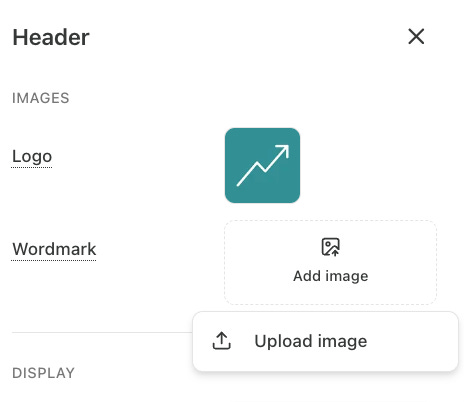
4. On the right, find Wordmark and click Add Image and then Upload Image to select your wordmark file.
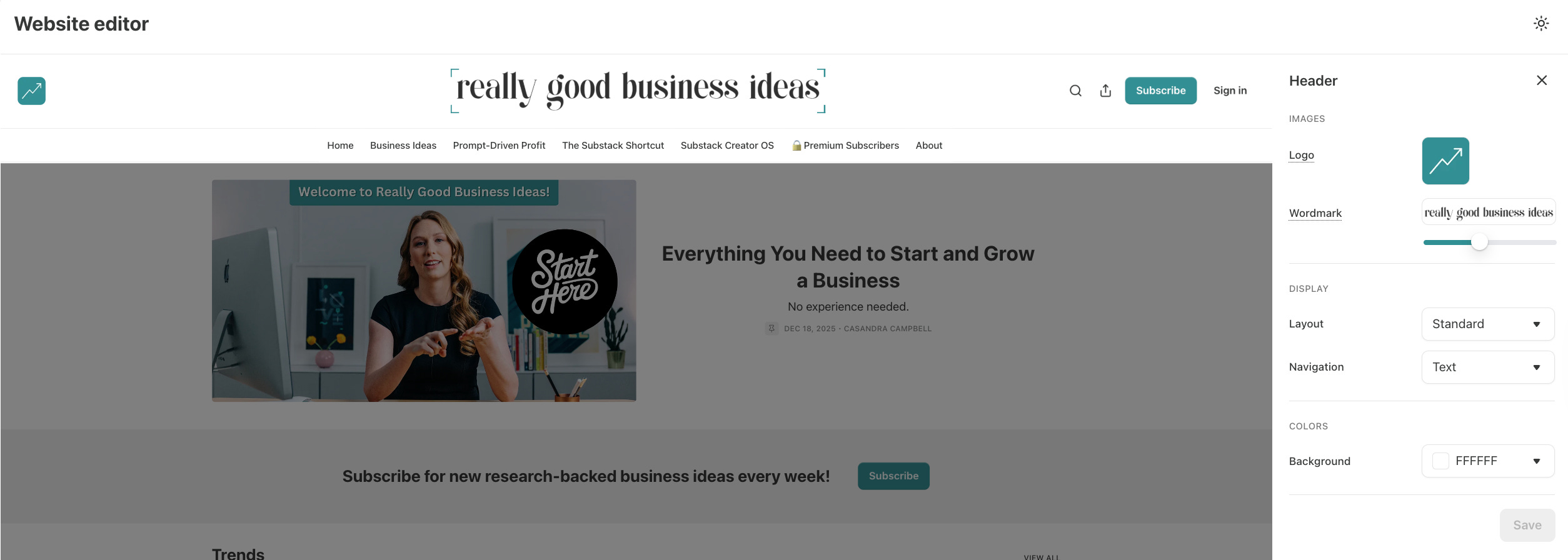
5. Once you’ve uploaded your wordmark, use the slider to adjust the size.
Do You Actually Need a Wordmark?
Strictly speaking, you don’t need a wordmark. Many publications are very successful without one.
Heather Cox Richardson’s Letters from an American is one of the most-read and highest-earning publications on Substack. Her publication doesn’t even use post images or a logo, let alone a wordmark.
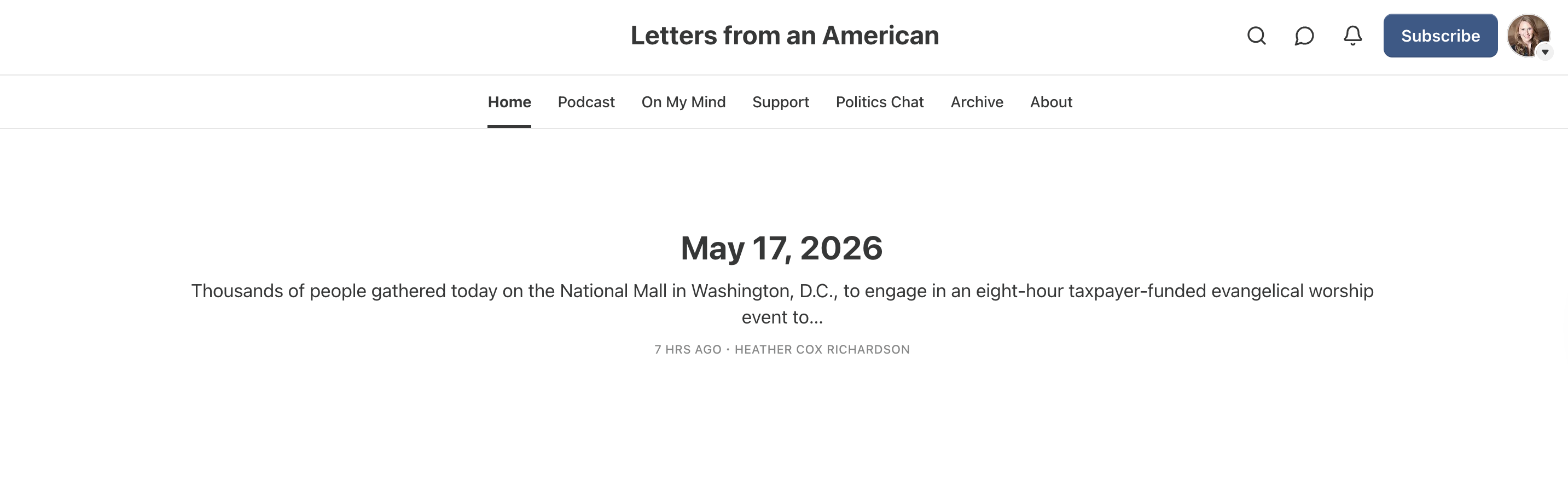
A wordmark adds visual polish, but it doesn’t drive subscriptions. Readers subscribe because the writing is good, the topic is relevant, and someone they trust recommended it. I’ve never seen anyone explain their subscribe decision as “the header looked professional.”
That said, I recommend that most people add a wordmark to their Substack publication. Especially if any of the following are true:
You’re building a brand that extends beyond Substack and want a consistent visual identity across platforms.
Your publication name has a font or letterform style that’s meaningful to the brand (a hand-lettered look, a specific typeface that signals something about the content).
You find the default text display visually inconsistent with the rest of your design choices.
But if visual brand isn’t an important part of your publication, feel free to skip it!
Common Wordmark Problems (And How to Fix Them)
Problem: My wordmark looks tiny after uploading.
Solution: This is the most common complaint, and the fix is almost always the same: the text isn’t filling the canvas. Go back to your Canva file, scale the text up until it nearly touches all four edges, and re-export. Don’t leave padding inside the file itself.
Problem: I can’t find the wordmark option in my settings.
Solution: The wordmark upload area is in the website editor, not the Basics section, where you upload your square icon logo.
Problem: The wordmark looks fine on desktop but strange on mobile.
Solution: Your wordmark will appear much smaller on mobile screens because it is a wide image, and mobile screens are much narrower. Keep the design to a single line of text and make it as simple as possible. Small details, thin letterforms, or anything decorative tend to get lost.
The wordmark is a small detail that can give your publication a more personalized or polished look, but if you’re still setting up your publication and this feels like one more thing to do, skip it for now. Your default text header works fine, and you can always come back to this later.
For the rest of your Substack visual identity, including logos, cover images, email banners, and post images, the full breakdown is in my Complete Guide to Substack Visuals.
To endless possibilities,
Casandra
Premium Bonus: Canva Templates for Substack
To make this easier, I put together a set of Canva templates with the exact Substack dimensions needed for every Substack visual asset you might need, including a wordmark. No guessing at specs or resizing after the fact. Just open the file and start designing.