


Substack was built with a singular mission: to help writers monetize their work by owning their audience and their income. While the platform provides a beautifully simple interface for writing, the real magic happens when you turn a casual reader into a paying supporter.
One of the most uniquely valuable parts of the platform is how it facilitates this transition through intentional design. Unlike traditional social media that relies on distracting ads and algorithmic whims, Substack gives you direct tools to guide your audience. At the heart of this system are buttons: concrete signposts that turn interest into action.
Most writers treat these buttons as an afterthought, but when used strategically, they are an extremely powerful lever for growth. This guide will show you how to master Substack’s button types to build a publication that drives action.
Table of Contents
What Are Substack Buttons?
A Substack button is a customizable call-to-action (CTA) element that you can insert directly into your posts to drive specific reader interactions.
Instead of hoping someone figures out the next step on their own, buttons make the action explicit: subscribe, upgrade, read more, download this, comment, or click through.
On a platform like Substack, this matters more than you might think. Substack is intentionally minimal. There are no pop-ups, banners, or complex layouts. Buttons are one of the few tools publishers have to guide reader behavior, which makes them disproportionately powerful.
Buttons Vs Links: What’s the Difference?
Hyperlinks can be used to link things with plain text, but they can’t be used to create a clear visual hierarchy or a sense of urgency. While a hyperlink blends into a sentence, a button acts as a physical target for the reader’s eye.
Buttons visually stand out from the rest of the post because the link is placed inside a colorful box. As a result, they reduce cognitive load and readers don’t have to hunt for the next step within a wall of text. By giving the most important action (like subscribing or upgrading) a distinct shape and color, you remove the friction of decision-making.
While links help you passively connect related information and parts of your publication, buttons are important signposts to guide your readers more intentionally toward your most valuable outcomes.
Types of Substack Buttons
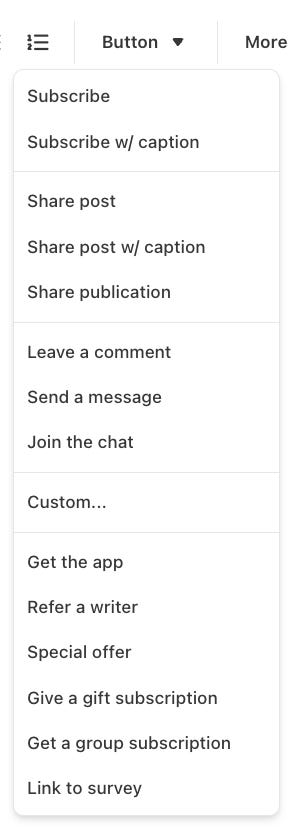
Substack supports 15 different types of buttons. Let’s go over each one and see what they look like in practice.
Subscribe
Subscribe buttons let readers subscribe to your publication directly from your content with a single click. If readers are currently logged into their Substack account, they will see the subscribe button next to a field with their email address pre-filled. All they have to do is click the button, and they will be subscribed!
Of course, if a reader is not logged in to a Substack account, the email field will be empty, and they will need to enter an email address before clicking the button.
Subsribe w/ caption
The Subscribe w/ caption button works the same way as the Subscribe button, but it also includes an editable body of text above the email form and button. You can see the default text Substack provides here, but I recommend customizing the text to match the context in which you’re placing it.
Share post
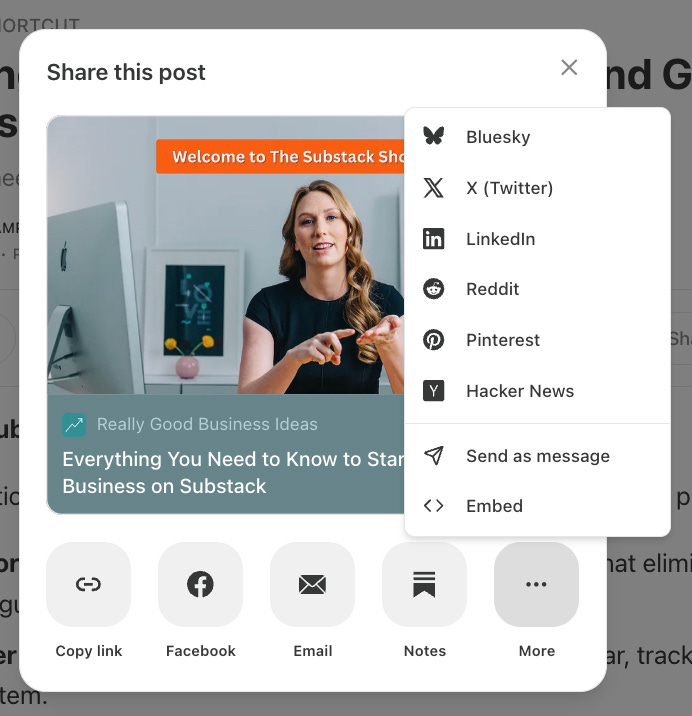
The Share button makes it easy for readers to share the post they are reading.
Once they click the button, a pop-up will appear with options to copy the article link directly or select from many channels to share the article to.
Share post with caption
The Share post with caption works exactly the same as the share button, except that it also provides editable text you can use to encourage readers to share your article. If you don’t edit the text, Substack will provide the default text below.
Share publication
The Share publication button works similarly to the Share post buttons but is instead used to help readers share your publication as a whole.
The share link will go straight to your publication’s homepage with your welcome page enabled (rather than the article it was used in).
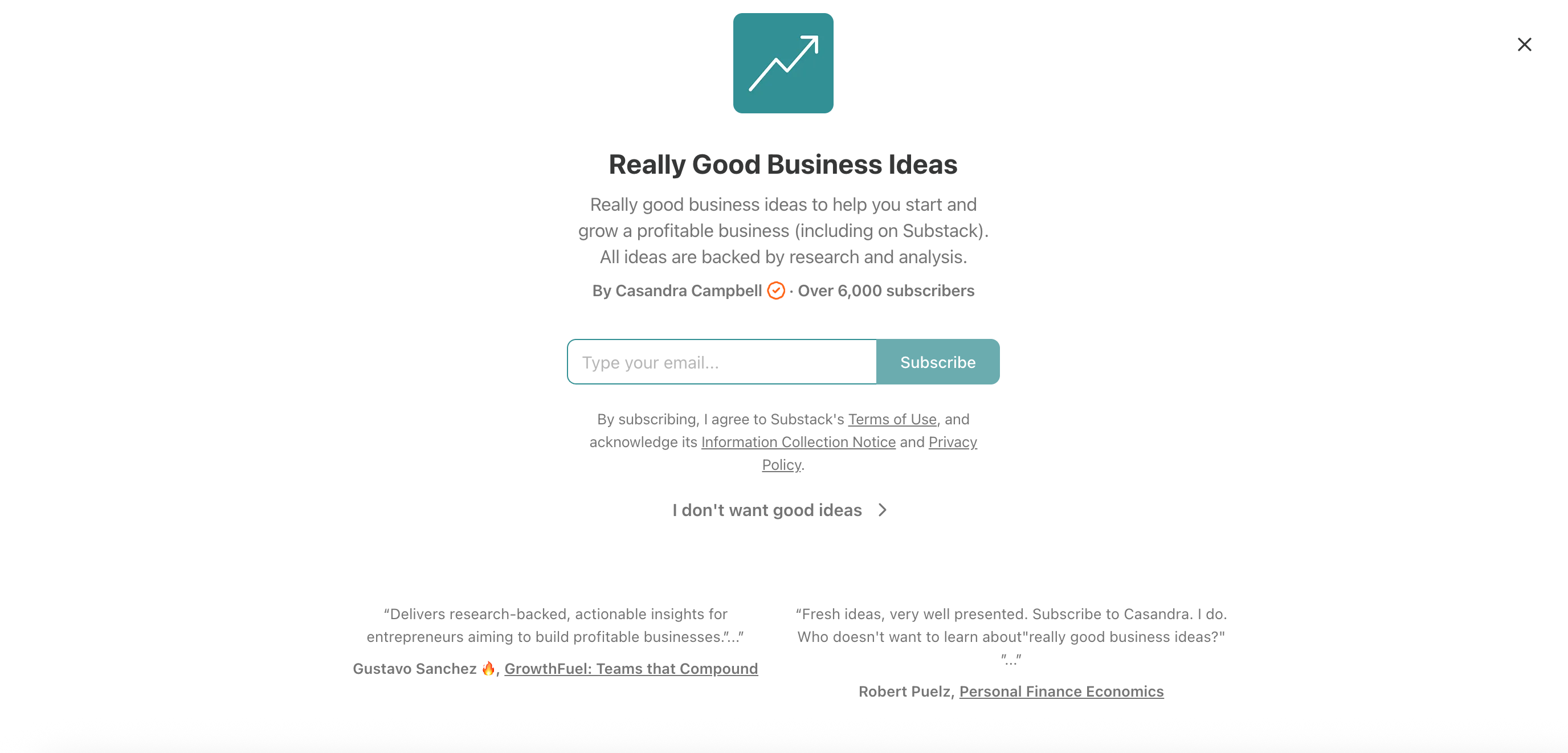
A word of caution: after a reader clicks the Share publication button, they will remain on your publication’s homepage and will not be taken back to the article they were reading. For this reason, it’s better to use this button at the bottom of articles or on other pages like your About page.
Leave a comment
The Leave a comment button can be used to encourage readers to engage with your article by commenting on it. When readers click this button, they will be taken directly to the comment section at the bottom of the article they are reading.
Remember that if your article has a paywall or you have limited commenting privileges to paid subscribers, then free subscribers or casual readers will not be able to comment.
Send a message
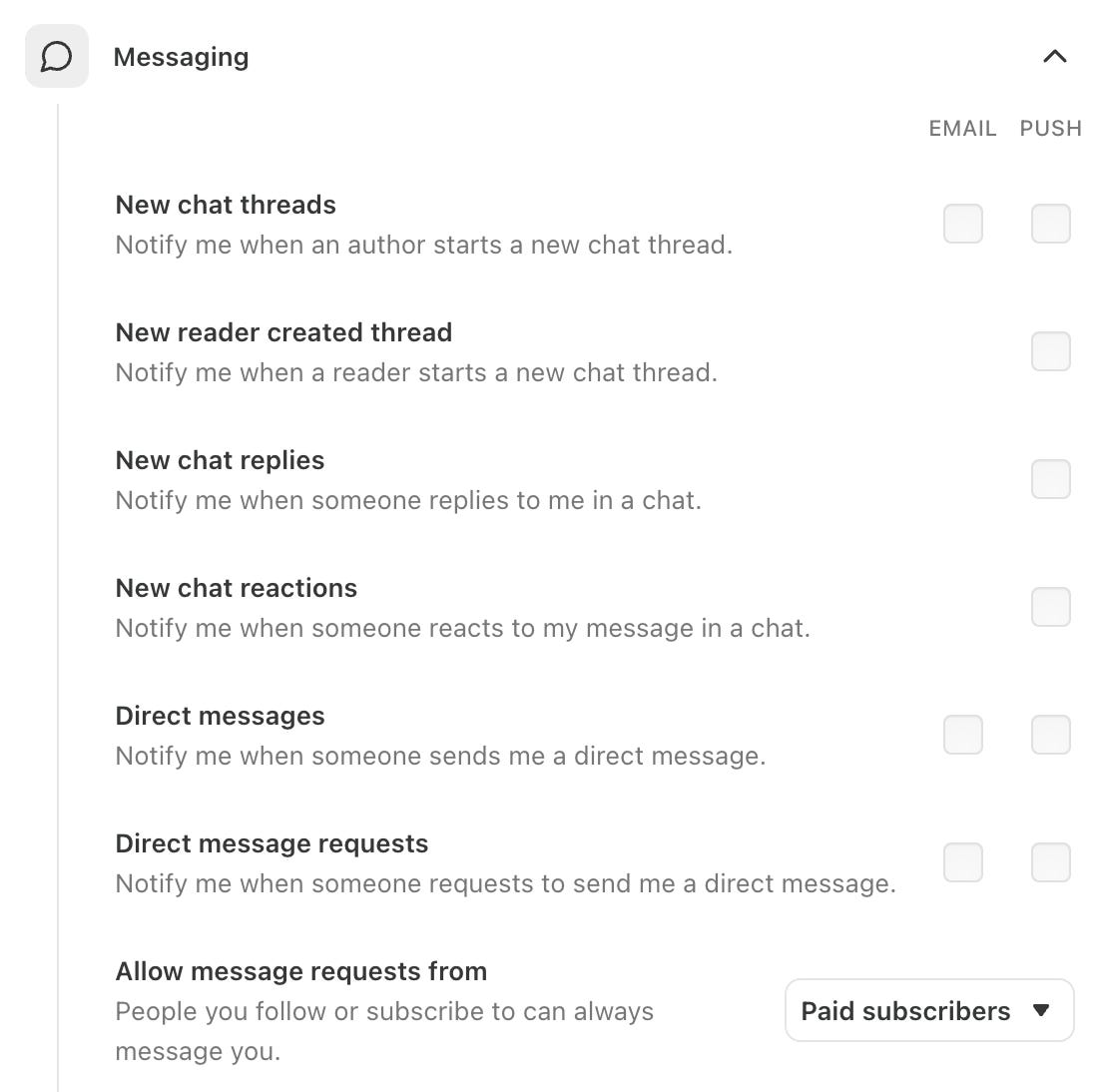
The Send a message button can encourage readers to message you directly via Substack direct messaging. Clicking the button will open a chat window with you where readers can write and send a message.
Remember to check your direct message settings before using this button to make sure you’ll receive the messages you intend to receive. For example, I provide DM support as a perk for Premium subscribers, so I occasionally share this button in paywalled posts, but I don’t otherwise encourage people to message me directly because I may not see it.
Join the chat
If you have a subscriber chat enabled for your publication, you can encourage readers to participate using the Join the chat button.

Custom
The Custom button is arguably the most powerful button (outside of the Subscribe button) because you can completely customize the button copy and where it links.
Custom buttons are ideal for directing readers to landing pages, products, or other items you want to promote because they stand out more than traditional hyperlinks.
For example, the custom button below links to my personal website, where you can learn more about me.
Get the app
Substack sees the app as a crucial lever for growth,1 so not surprisingly, they regularly encourage writers to promote it. If the app is an important part of how you connect with your readers, you may want to encourage them to download the app using the Get the app button.

Personally, I think my readers have a better experience on the website (for example, my navigation menu and Sections are not accessible in the app), so I don’t promote it.

Refer a writer
The Refer a writer button makes it easy for readers to start their own publications.
This button will take them to a landing page where they will be prompted to enter their email to start onboarding to Substack.
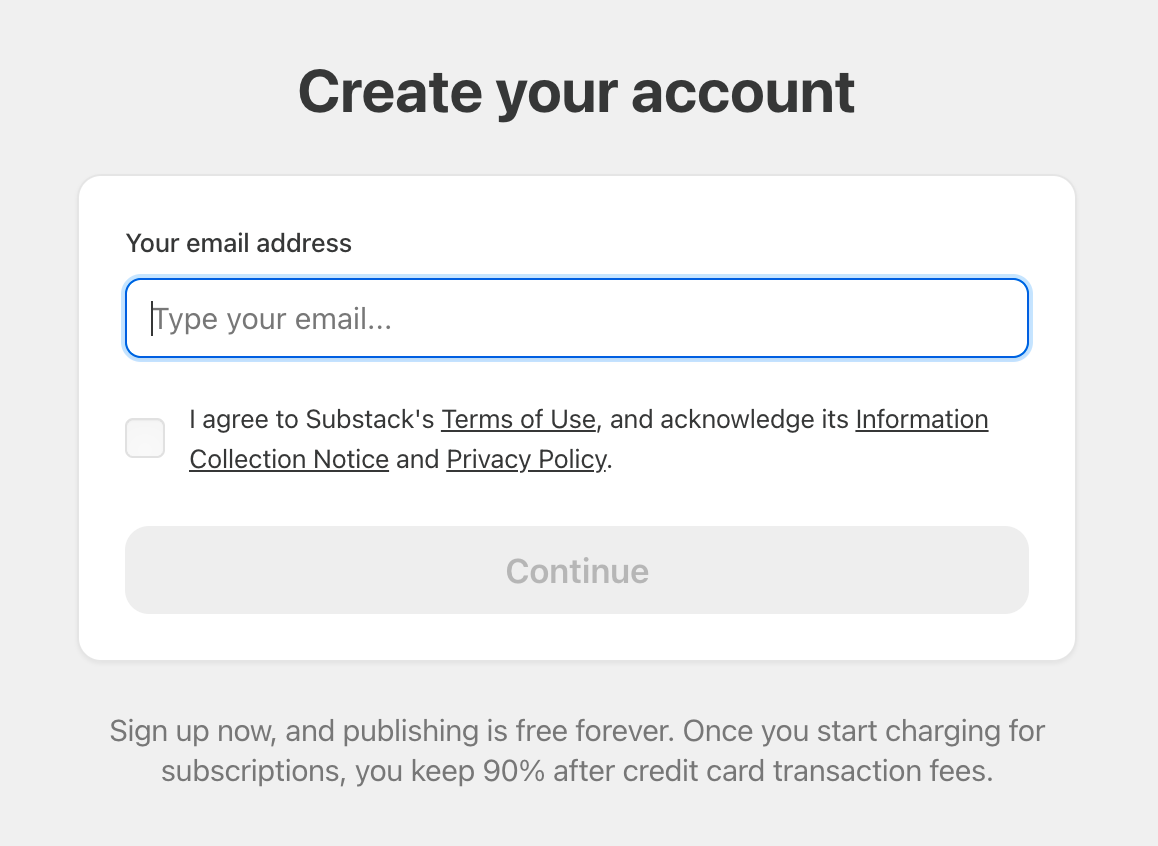
Since there’s currently no affiliate program for Substack, this generally benefits the platform more than the publication using the button. If you are specifically directing readers to start a publication, this button may make sense. But otherwise, I recommend skipping it since you probably have other actions (like subscribing to your publication) that you would rather promote instead.
Special offer
The Special offer button is a great way to encourage paid upgrades by including a direct link to a special offer you’re running directly in your content.
For example, if you’ve been thinking about upgrading to Really Good Business Ideas Premium, you can use the button below to join for 50% off an annual subscription.
Give a gift subscription
The Give a gift subscription button allow your current readers to purchase a paid subscription for someone else. This is a powerful way to grow your audience through word-of-mouth and is particularly effective during holiday seasons or as a way for readers to support your work by sharing it with their network.
Get a group subscription
Substack makes it easy for publications to offer discounted rates for multiple subscribers from the same organization or team. If you have group subscriptions enabled, the Get a group subscription buttons allow you to share this promotion directly in your content.
Link to survey
Substack makes it easy to run surveys to gain insights about your audience. Once you create a survey, you can easily add a button linking to it on any posts or pages you publish (including your welcome emails!).
How to Add Buttons to Substack Posts
All 15 Substack buttons can be easily added to a post (or page) using the “Button” dropdown at the top-right of the editor.

Simply click the dropdown, select the button you want to use, and customize it as needed. Note that you will need to click “More” at the bottom of the list to see all the button types.
The Most Effective Way to Use Substack Buttons
Substack gives you many options, but using them strategically is what actually moves the needle on conversions. Here is how to use buttons most effectively.
1. Place at Least One Button “Above the Fold”
Data consistently shows that many readers never make it to the bottom of a post. By placing a button (usually a Subscribe button) near the top of your article, you capture the attention of your most eager readers immediately.
2. Use Buttons Where They Are Most Relevant
Context is everything. Instead of just dropping buttons at the end of a post, insert them at the exact moment a reader is most likely to feel inspired to act. For example:
Place a Share button immediately after a particularly insightful quote or data point.
Insert a Special offer button right after you’ve explained the value of your premium content.
3. Choose the One Most Important Action
Avoid causing decision fatigue for your readers by limiting the number of different calls to action. If your primary goal is to get paid subscribers, don’t clutter the post with buttons for your chat, app, and survey all at once. Pick one primary objective and make it the focal point.
4. Link to Dedicated Landing Pages
For complex offers or products, use a Custom button to send readers to a dedicated landing page that has been optimized for conversions. This allows you to provide more detail and social proof than you can fit into a single button caption, significantly increasing your conversion rate.
How to Write Custom Button Copy That Converts
The Custom button is definitely your most powerful tool for conversion, so learning to use it effectively is extremely important. Unlike other buttons that have fixed purposes, the Custom button is the only one that allows you to fully customize both the display text and the destination link.
To make the most of this flexibility, follow these four principles:
1. Focus on the Value, Not the Action
Most standard buttons describe the work the reader has to do (Subscribe, Sign Up, Share). High-converting custom buttons describe the benefit the reader receives after they click.
Instead of: “Click here”
Try: “Get the Weekly Strategy” or “Join 5,000+ Founders”
2. Use the “I Want To...” Test
A great way to find the right wording is to complete the sentence “I want to...” from your reader’s perspective. Whatever follows is your button copy.
I want to... “Save 50% on my membership“
I want to... “Unlock the swipe file“
3. Create a Sense of Urgency or Exclusivity
Because you can change the text on a Custom button at any time, they are perfect for special offers or time-sensitive bonuses. Adding a constraint can nudge readers who are on the fence.
Example: “Claim my discount (Ends Friday)” or “Get the limited-edition guide”
4. Optimize for “The Presumed Yes”
Research shows that using language that presumes the reader has already decided they want what you’re offering drives meaningful increases in conversions. This presumed-arranged approach reduces the mental friction of making a "new" decision by framing the action as the natural next step.
Permission-Seeking vs. Presumed-Arranged
The difference is subtle but powerful. While permission-seeking language asks for a commitment, presumed-arranged language suggests that the benefit is already waiting for them.
Click here to open the table in a new tab.
Turn Passive Readers into Active Subscribers
Buttons are more than just design elements; they are the intentional signposts that guide your readers toward deeper engagement. Whether you are using a standard Subscribe button to grow your list or a Custom button to product drive sales, the goal is the same: to remove the friction between reading your work and taking the next step—whatever you want that step to be.
The right button at the right moment can be the difference between a casual visitor and a lifelong supporter. Use these tools strategically to build a publication that doesn’t just get read, it gets results.
To endless possibilities,
Casandra
🎁 Premium Bonus: The Presumed Yes Swipe File — 100+ Ready-to-Use Phrases to Increase Conversions
For Really Good Business Ideas Premium subscribers: Get 100+ ready-to-use phrases that turn “maybe” into “YES!” Organized by channel and offer type, this swipe file gives you plug-and-play wording for Substack buttons, as well as emails, social posts, landing pages, signage, and more. Just drop them into your marketing, a/b test them, and watch your conversions climb.